
:: OpenDMA Adaptors
:: ECI Server
:: Legacy Products
:: DocsInOffice.com
:: XOServices
:: WebSpider 2
:: Xaldon File Commander
:: Summary
:: Features
:: Description
:: File Management
:: Viewers and Editors
:: Tools
:: Download
:: Meetingpoint


XFC File viewers and editors
XFC includes integrated viewers and editors for ASCII text files and various image formats. The viewers differ from the editors only in that they do not allow modifications to the displayed content.
Pressing the [F3] key in the file manager launches the viewer for the file currently selected in the active file panel. From within the viewer, you can switch directly to editing mode via File | Edit or by pressing [F5]. The editor can also be started directly from the file manager by pressing [F4].
If the file is located on an FTP server or inside a ZIP archive, it is automatically downloaded or extracted before editing and uploaded back to the server or repackaged into the archive after the changes have been saved successfully.
Image Viewer and Editor
The image editor is launched whenever the viewer/editor is opened for a file with one of the following extensions:
*.bmp, *.ico, *.jpg, *.jpeg, *.wmf, *.emf, *.pcx, *.pcc, *.dcx, *.png, *.tga, *.afi, *.vst, *.tif, *.tiff
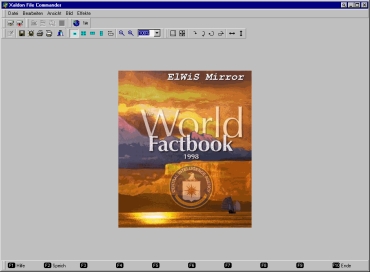
The image viewer provides continuous zooming and printing capabilities. The editor additionally offers a wide range of image manipulation functions accessible through menus and toolbars. Since most of these functions are self-explanatory, they are not discussed in detail in this short manual.
Text Viewer and Editor
If the file being viewed or edited is not an image (see section 2.1) and does not contain non-printable control characters, it is opened in the text viewer/editor:
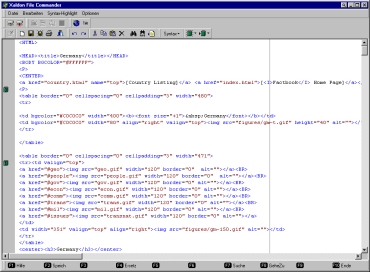
The editor features color syntax highlighting (which can be enabled or disabled via the menu or toolbar) and provides all the functionality expected from a modern state-of-the-art text editor:
- Multi-level Undo and Redo
- Effortless handling of very large text files
- No limitations when working with extremely long lines
- Automatic detection of different line ending formats (DOS, Mac, Unix)
- Saving files using any supported line ending format
- Text selections; NEW: block selections (hold down the [ALT] key while selecting with the mouse)
- Clipboard support (Cut, Copy, Paste, Delete)
- Search (including regular expressions), Replace, and Go To
- URL highlighting (blue and underlined, with automatic browser launch when clicked)
- Line numbers
- Printing (including syntax highlighting, color output, line numbers, etc.)
- Optional vertical guideline representing a configurable right margin
- Freely movable cursor (not restricted by the end of a line)
- And much more...
Bookmarks
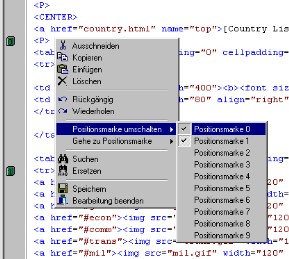
Bookmarks can be placed at arbitrary text positions using the context menu or toolbar. They are displayed in the gray margin on the left side of the editor and can be revisited at any time via the context menu or toolbar. This feature is particularly useful when working with larger documents.
Programming Assistance
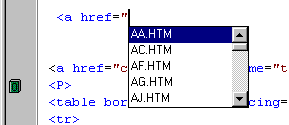
When editing an HTML document and entering a reference to another file, a list of possible target files automatically appears if you pause for more than one second after typing a quotation mark ("). You can then conveniently select the desired file from the list. The same mechanism is available when inserting references to images.
Display Line Endings and End-of-File Markers
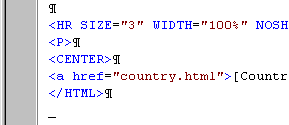
A line-ending marker can be displayed after each line, allowing you to see the exact physical position of line breaks within the file. An end-of-file marker can also be displayed, which is particularly useful for identifying unwanted blank lines at the end of a document.