
:: OpenDMA Adaptors
:: ECI Server
:: Legacy Products
:: DocsInOffice.com
:: XOServices
:: WebSpider 2
:: Xaldon File Commander
:: Summary
:: Features
:: Description
:: File Management
:: Viewers and Editors
:: Tools
:: Download
:: Meetingpoint


XFC File management
Main Window
After starting Xaldon File Commander, you are presented with the following interface:
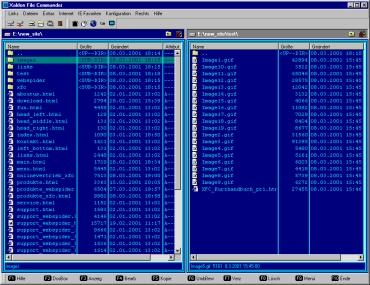
At the top of the window are the menu bar and toolbars. At the bottom, a function key bar displays the assignments of the keyboard's [F1]–[F10] keys, providing quick access to the most important functions. As in Microsoft Office applications, menus and toolbars can be repositioned by the user.
The main area of the application is divided horizontally into two sub-windows. Each sub-window displays the contents of a directory as a file list. The current directory name is shown in the title bar above each list. One of the two file lists is always active (indicated by a green selection bar and a blue title bar) and receives user input. The active panel can be switched using the [TAB] key, similar to standard Windows applications.
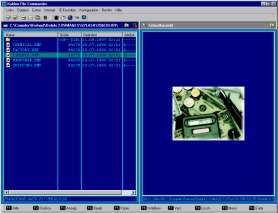
Alternatively, a sub-window can display either a status view or a quick preview related to the contents shown in the opposite panel.
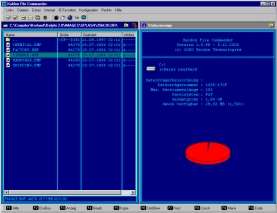
The status view provides information about the file system associated with the directory displayed in the opposite panel.
The quick preview displays the file currently selected in the file list of the opposite panel.
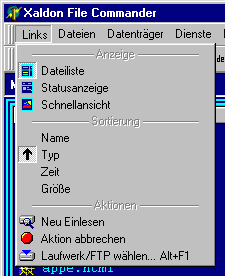
The Left and Right menus control the content displayed in the corresponding panel. These menus allow switching between file list, status view, and quick preview, as well as configuring the sort order of file lists (directories are always displayed before files).
The Refresh command reloads the currently displayed directory. Cancel Operation immediately aborts any ongoing operation, such as a directory change or FTP request, which is particularly useful when working with slow FTP connections.
File System Navigation
Double-clicking a directory with the mouse or pressing the [ENTER] key while a directory is selected opens that directory. The special entry ".." represents the parent directory.
Performing the same action on a file launches the default action associated with that file type (starting the corresponding application or opening the file with the registered handler).
File lists can display the contents of:
- Local drives
- FTP servers
- Compressed archives
Archives (currently ZIP files only) can be treated like directories. Double-clicking a ZIP file or pressing [ENTER] enters the archive and displays its contents. Navigation through the archive's directory structure works exactly like navigation through normal directories.
To select the drive or resource displayed in a file panel, click the drive icon located to the left of the directory name in the panel title bar. A menu appears listing all available drives, predefined directories, and configured FTP servers.
Alternatively, selecting:
- Left | Select Drive/FTP...
- Right | Select Drive/FTP...
or using the keyboard shortcuts:
- [ALT]-[F1] for the left panel
- [ALT]-[F2] for the right panel
opens the drive selection dialog:
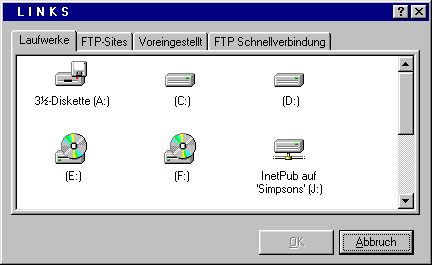
From here, either a local drive can be selected or the connection details for an FTP server can be entered:
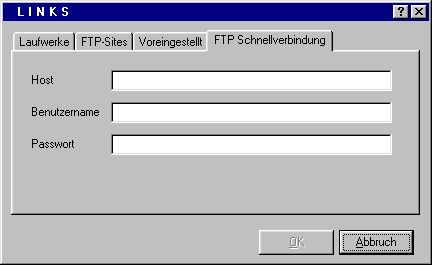
The contents of FTP servers and ZIP archives are displayed in exactly the same way as local directories. Navigation works identically, although files cannot be executed directly and nested ZIP archives cannot be opened within these virtual file systems.
To avoid entering FTP credentials repeatedly, FTP connections can be stored in the list of FTP sites. Frequently used directories can similarly be stored as predefined directories.
These lists can be managed through:
- Configuration | FTP Sites
- Configuration | Predefined Directories
Entries from both lists are available from the context menu as well as the drive selection dialog.
Selecting Files
Since file operations can be applied to one or more files or directories, XFC provides several convenient ways to select files. Selected files are displayed in yellow on a blue background.
- Pressing the [Insert] key selects the current file and moves the selection bar down by one position.
- Holding the [CTRL] key while clicking a file toggles its selection state.
- Holding the [SHIFT] key while clicking selects or deselects all files between the current selection bar position and the clicked file.
- Selecting Files | Select Group or pressing the numeric keypad [+] key opens a dialog that allows selecting multiple files using a wildcard or regular-expression-like pattern (for example:
*.*,*.gif,*.jpg,tn_??45.png, etc.). - Selecting Files | Unselect Group or pressing the numeric keypad [-] key provides a corresponding mechanism for removing selections from multiple files.
- Files | Invert Selection reverses the selection state of all files.
- Files | Compare Directories compares the contents of the left and right file panels and selects all files that either do not exist in the opposite panel or have an older modification date there.