
:: OpenDMA Adaptors
:: ECI Server
:: Legacy Products
:: DocsInOffice.com
:: XOServices
:: WebSpider 2
:: Xaldon File Commander
:: Summary
:: Features
:: Description
:: File Management
:: Viewers and Editors
:: Tools
:: Download
:: Meetingpoint


XFC Tools
Frequently used advanced file operations have also been integrated directly into XFC as so-called services. These services can often replace additional standalone software entirely. Each service operates on one or more selected files (including files located in subdirectories). Simply select multiple files or directories, or apply the service to the file or directory currently highlighted by the cursor.
The available services can be started either from the Services menu or via the corresponding toolbar button.
Needless to say, all of these services operate independently of the underlying file system. For example, if the thumbnail generator is executed on directories located on an FTP server, XFC will automatically browse the directories, download the corresponding images, extract them if necessary, generate the thumbnails, compress the results, and upload them back to the server.
Create Archive
In the dialog window that appears
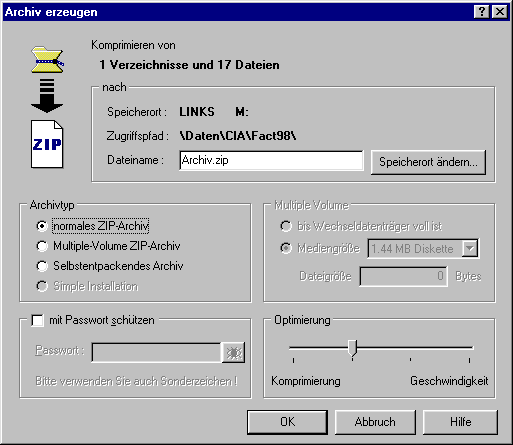
you can specify additional archive parameters such as archive type, password protection, and compression settings. Besides standard ZIP archives, XFC can create multi-volume archives of arbitrary size as well as self-extracting archives. For self-extracting archives, additional information such as vendor name, content description, archive description, and default extraction directory can be specified. This information is presented to the user by a wizard before extraction begins.
Send via Email
In the dialog window that appears
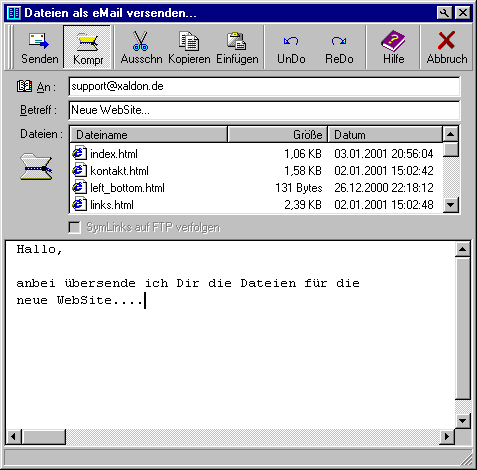
you only need to specify the recipient, subject, and message. Recipients can be selected directly from Microsoft® Outlook contacts. The files selected for transmission, which are displayed again in this dialog, can optionally be compressed into a ZIP archive before being attached to the email. When the compression option is enabled, the selected files are packaged into a ZIP archive and the archive is attached to the email.
The SMTP server credentials are taken from the application configuration. Emails are sent directly through the configured SMTP server. No additional software is required on the local machine (no MAPI gateway required).
Convert Image Formats
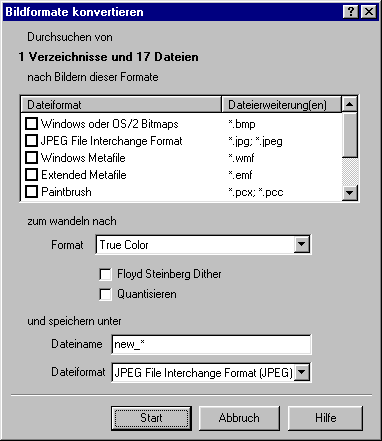
The selected files and directories are scanned for image files matching the formats chosen in the dialog. These images are then loaded, converted into the target format (optionally using dithering and color quantization), and saved under a new filename generated from a regular expression.
Generate Thumbnails
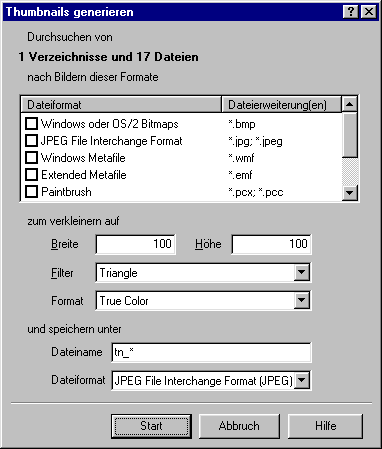
The selected files and directories are scanned for image files matching the formats chosen in the dialog. These images are loaded, resized to the specified dimensions while preserving their aspect ratio, processed using image filtering, and saved under a new filename generated from a regular expression.
Search Files
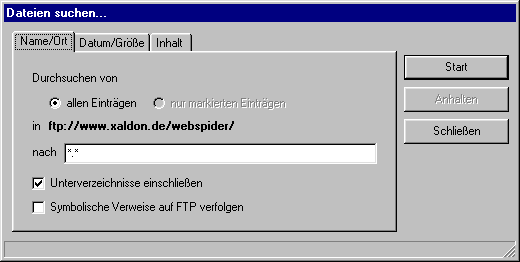
The selected files and directories are searched for files matching specific criteria. Search criteria can include filename, file size, modification date, and file content. Searches within file content can also be performed using binary values specified as sequences of hexadecimal bytes.
Subdirectories and symbolic links can optionally be included in the search. Searches can be performed not only on local files but also on FTP servers and inside ZIP archives — including searches based on file contents.
Internet Tools
The Internet menu provides access to several integrated network clients, including Ping, Finger, TraceRoute, DNS Lookup, Telnet, and SMTP email transmission. In addition, the IE Favorites menu provides direct access to Internet Explorer favorites using the system's default web browser.
Configuration
Application settings can be configured through the menu item Configuration | Settings.... Due to the large number of available configuration options, settings are organized into sections using an Outlook-style navigation bar.